

The Meta Pixel ID identifies the data source that receives website events. Server-side tracking also uses a secret Conversions API token.
The Pixel ID is a number used for Web tracking. The token is a private credential used to authenticate API events.
How to find the Meta Pixel ID
Open Business Settings
Open Business Settings from Meta’s side menu.
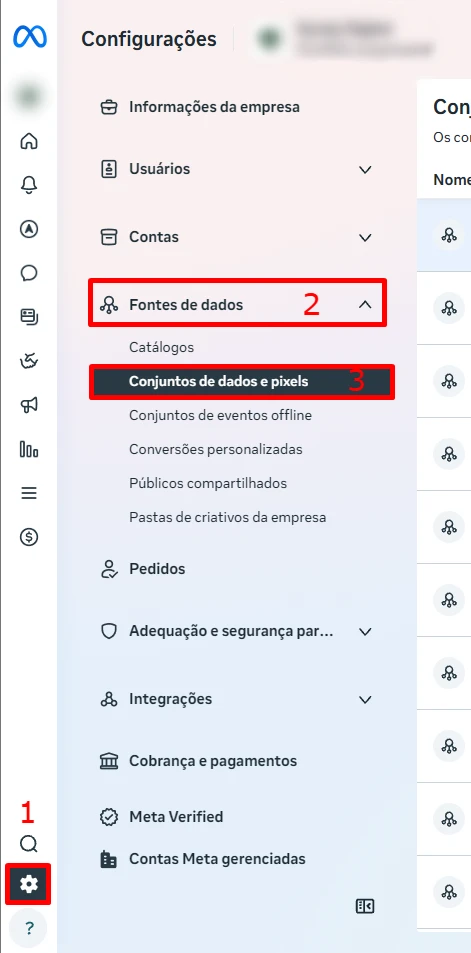
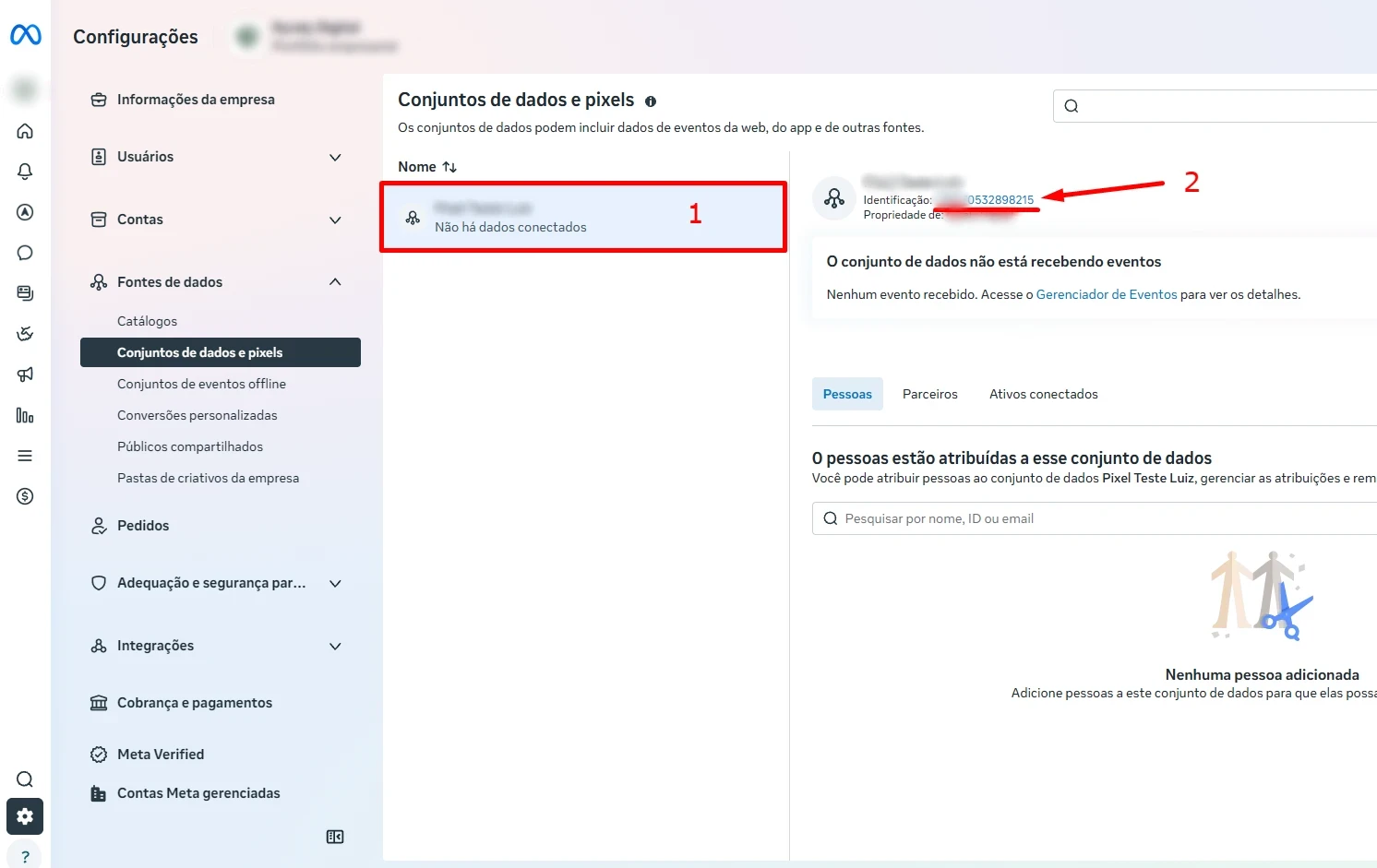
Select your website’s data source
Open Data Sources → Datasets and pixels, select the source connected to your website, and copy the numeric ID beside its name.
How to generate the Conversions API token
You only need this part for server-side tracking. The token does not replace the Pixel ID.
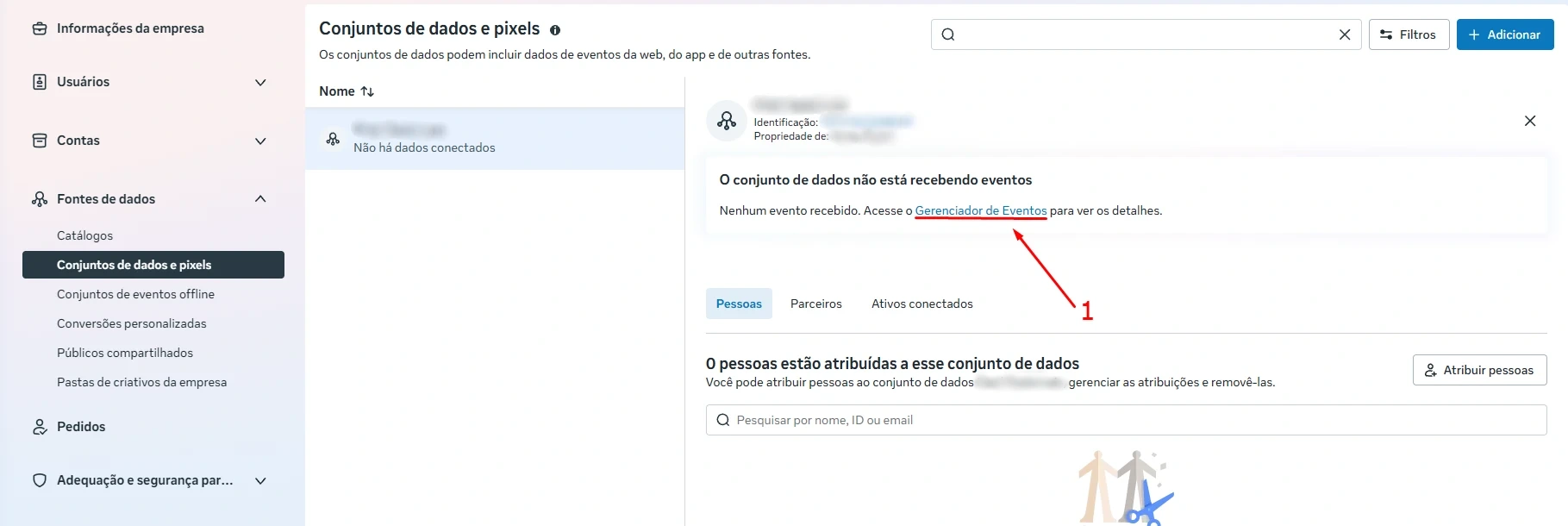
Open Events Manager
With the data source selected, click Open in Events Manager.
Find Conversions API settings
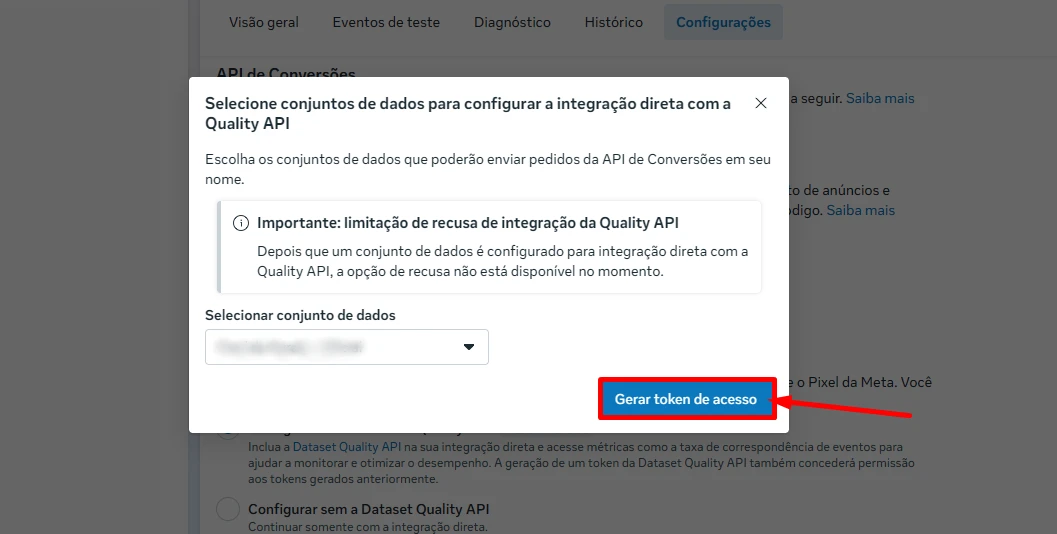
Open Settings, scroll to Conversions API, and choose the direct setup option.
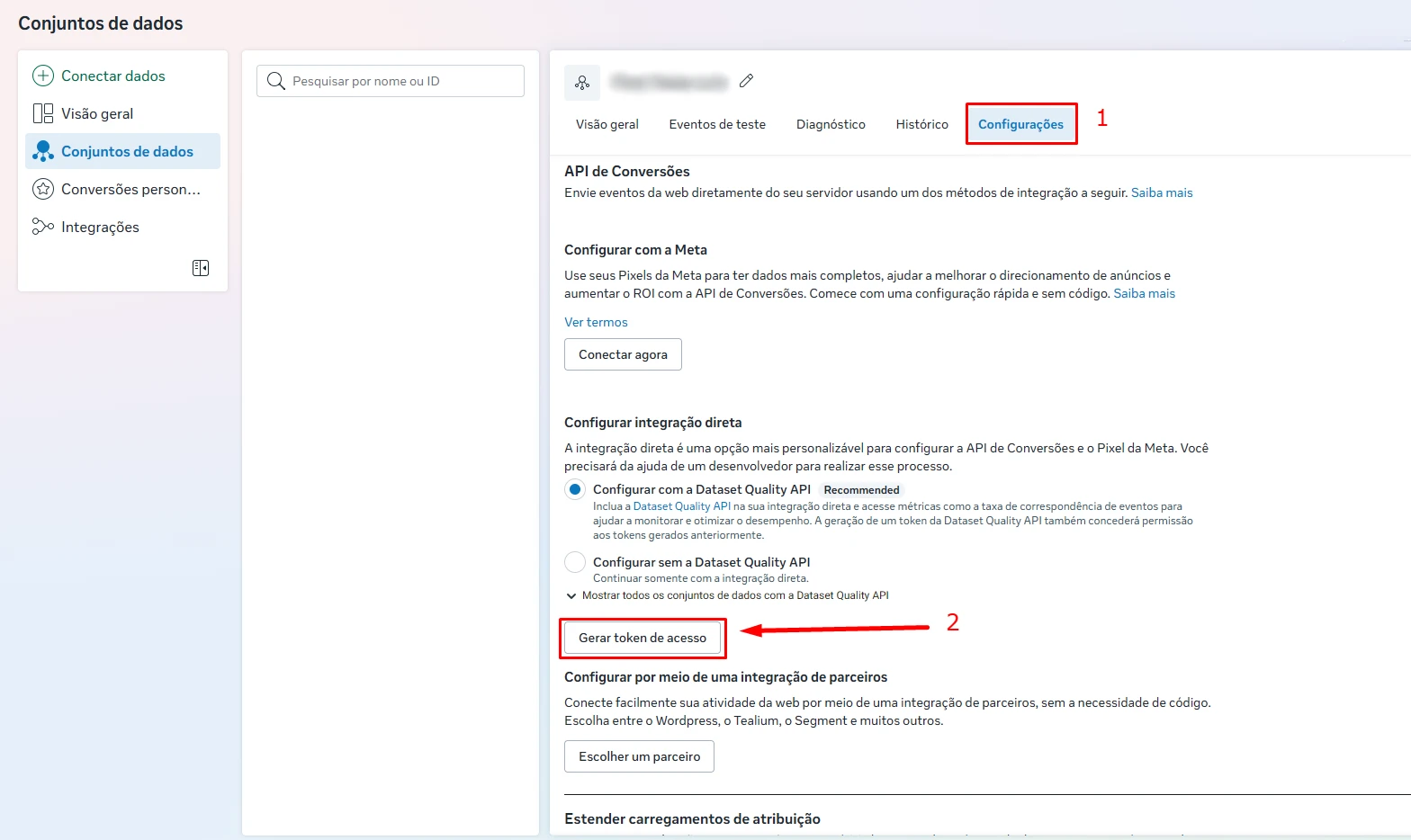
Generate and protect the token
Click Generate access token, copy it, and store it securely.
Where to use these values in ETM
Enter the Pixel ID during Web implementation. When configuring server-side tracking, ETM also asks for the Conversions API token in a secure field.
Found what you needed?
Open ETM, choose your GTM, and use this information to prepare the tracking.